Wi-Fi Connected but No Internet? Find Which Link Has Failed
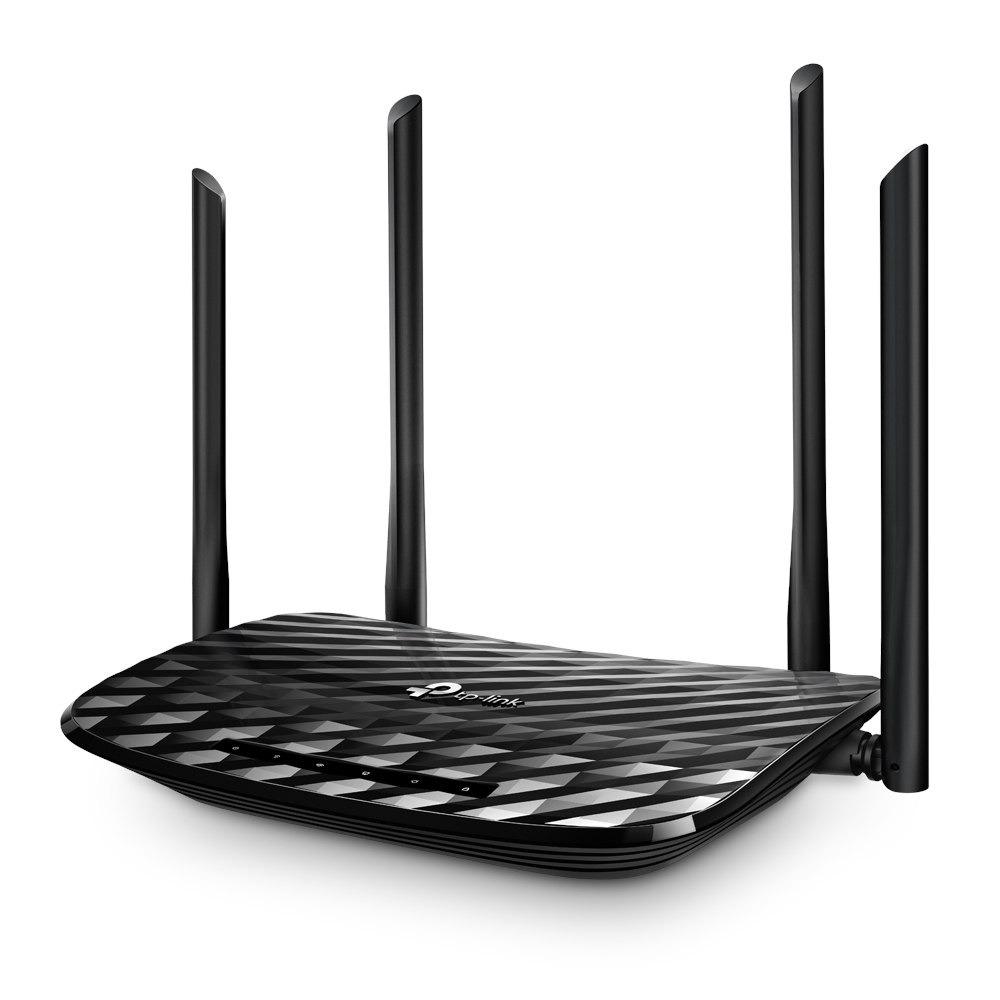
A full Wi-Fi symbol only tells you that the phone can reach an access point. It does not prove that the broadband line, account or website is working. A few comparisons can narrow the fault before you touch router settings.
Start with the evidence
Treat the connection as a chain: phone, wireless network, router, broadband provider, then the service you are opening. The most useful evidence is where two tests differ. In a shared flat, ask before interrupting the router because someone may be working or on a call.
A practical sequence
- Open two unrelated websites on the same phone. If only one fails, investigate that service instead of changing the whole network.
- Connect a second device to the same Wi-Fi. If both fail, the problem is less likely to be one phone setting.
- Turn off Wi-Fi and try the same page on mobile data, allowing for your data balance. A successful load points toward the home connection.
- Check the router lights against its own manual. Restart only when appropriate; keep factory reset as a separate last-resort procedure.
An example to recognise
In a Pune flat, both laptops fail on Wi-Fi while a phone loads the same pages on mobile data. That is useful evidence for the broadband helpdesk. It is not proof that a new router is needed.
Before you finish
Record the time, affected devices and light pattern. Never post the Wi-Fi password or router login in a public support forum.
Keep a short note of the result before trying another change. If the original symptom persists, that note helps you explain what happened to the relevant provider. A single successful test is useful evidence, but it does not establish that every device or location will behave the same way.